

Table of contents
Zoom can be connected from the Services section in TeamScore. Once connected, Zoom will begin sending new meetings, calls, and webinar activity to TeamScore for each mapped user.
TeamScore supports multiple Zoom accounts. Each account is its own connection and can be added separately.
Only Executives and Admins can initiate Zoom connections.
Step-by-Step Setup Instructions
Step 1 – Connect Zoom at the Account Level
- Go to Services in the top navigation
- Scroll the Services List down to Zoom
- Select Connect Zoom
- Sign into your Zoom account and approve the requested permissions
After approval, Zoom will return you to the integrations page in TeamScore.
Step 2 – Automatic User Mapping
When the connection is complete, TeamScore imports your Zoom users, matches them to the TeamScore profile by email. Matched users will have Zoom active in their Services tab automatically. No manual activation is required.
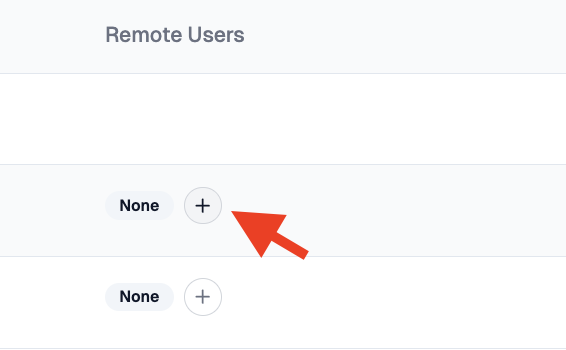
If a user is not mapped, open the Users Tab of the Zoom integration and connect them manually by selecting the correct Zoom account from the dropdown.
Step 3 – Manage Zoom Access Per User (Optional)
Admins, Owners, and Executives can disable or re-enable Zoom for individual team members. To manage access:
- Go to Team View → select a user → Services Tab
- Find Zoom
- Toggle the service On or Off
This is useful for organizations that have mixed Zoom licensing or want to restrict visibility to specific roles.
Multi-organization admins can also manage Zoom at the account level in Accounts → Services.
What Happens Next
Once Zoom is connected, TeamScore begins receiving new activity automatically. Activity appears on the timeline when:
- A mapped user hosts a Zoom meeting
- A mapped user hosts a webinar session
- A mapped user places or receives a Zoom Phone call
- A mapped user adds call or meeting metadata that Zoom shares
Zoom does not send historical activity. New activity will appear in TeamScore within Zoom's standard reporting window.
You can review the connection and user mapping at any time from the Zoom integration page.
For an overview of how Zoom data appears in TeamScore, see Zoom Overview.