

Table of contents
The Service View gives you a full picture of how a connected service is operating inside TeamScore. You can access this view from User View → Services Tab → click a service name. (Service names in the Services List are not clickable).
This screen gives you a complete picture of how TeamScore ingests and processes activity for that service.
Layout at a Glance
When you open a service, you’ll see several tabs across the top:
- Overview — ownership, status, subscribers, and connection metadata
- Users — everyone TeamScore matched from the external system
- Features — feature-level activity (Gmail, Drive, Calendar, etc.)
- Connections — the technical connection powering the integration
Your permissions determine what you can update. Owners, Executives, and Admins can manage settings; Members usually have view-only access to most settings.
Overview Tab
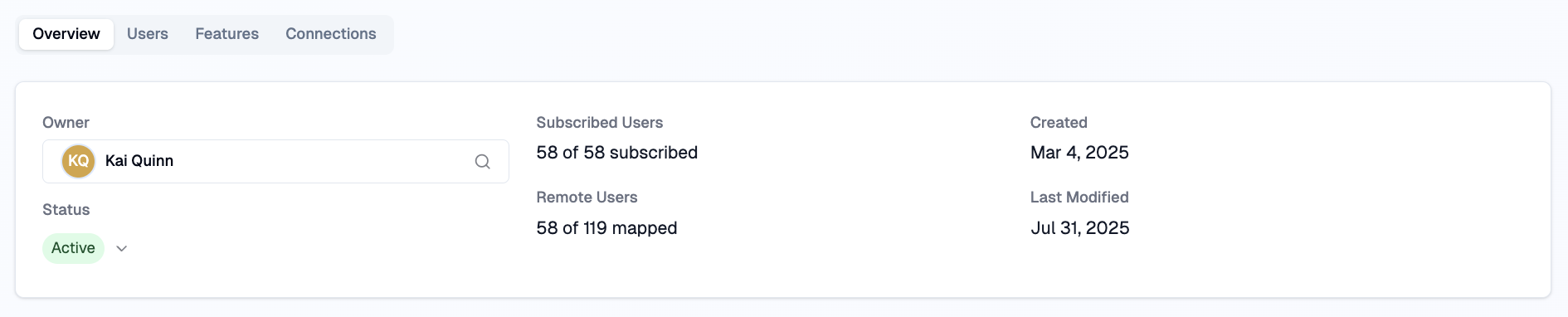
The Overview Tab gives you the high-level configuration of the selected service: who owns it, how many users are mapped, and whether the connection is active and healthy.
Renaming a Service
By default, TeamScore uses the name of the service. But in more complex environments, you may see multiple entries of the same service. Renaming them helps you keep the records organized.
Common reasons to rename a service include:
- Your organization uses multiple domains (e.g., company.com and company.eu).
- You have both sandbox/test and production environments connected.
- A service name comes through as a technical identifier rather than something readable.
- You want service names to match internal naming conventions across the dashboards and views.
To rename a service, hover over the service name and click the pencil button next to it, type the new name, and press Enter or click the checkmark to save.
Users with the Member access level cannot rename services. Please note that renaming a service never affects the integration and sync itself.
Overview Fields
- Owner — Displays the current connection owner. Use the search icon to reassign if you have permission. The owner is responsible for maintaining authentication and configuration.
- Status — Shows whether the service is Active, Paused, or requires attention. If inactive, TeamScore will stop processing activity from this service.
- Subscribed Users — Total number of TeamScore users actively linked to this service and have ingestion enabled. Example: 58 of 58 subscribed → All mapped users are currently contributing activity.
- Remote Users — How many remote identities TeamScore has detected for this service, and how many have been mapped. If the number is lower than expected, some users may need manual mapping. Example: 58 of 119 mapped → TeamScore found 119 remote accounts; 58 belong to real users in your workspace.
- Created / Last Modified — Timestamps showing when the connection was set up and last updated.
Feature Panel
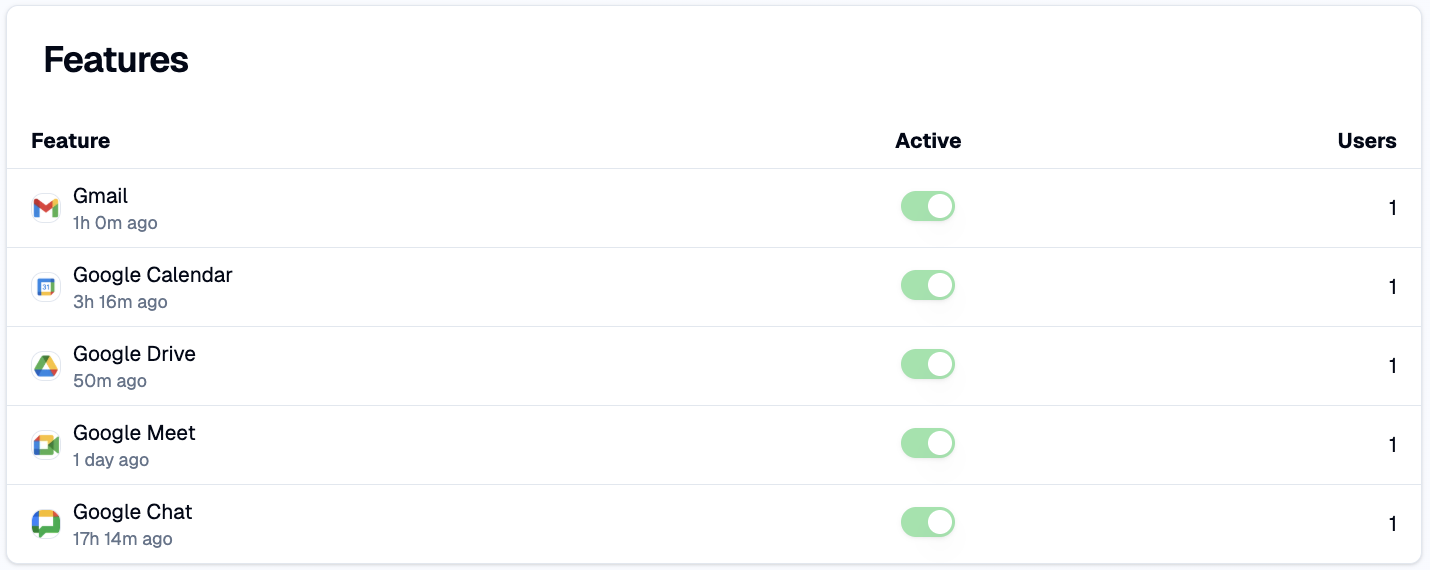
Some services — most notably Google Workspace and Microsoft 365 — include several built-in capabilities such as Gmail, Calendar, Drive, Meet, and Chat. These appear in TeamScore as Features under the parent service.
Features behave like mini-integrations, but they do not require separate authentication or user mapping. Once the parent service is connected, TeamScore automatically recognizes and processes activity from each feature.
TeamScore receives activity from these feature areas whenever data exists. You can enable or disable individual features depending on your organization's usage. For example, if your company uses Slack or Zoom instead of Google Chat or Google Meet, you might choose to turn off those features. However, it is usually recommended to keep these features enabled, as they only activate if data actually exists — they do not cause unnecessary data clutter or noise.
→ Read more about Features in the Features Tab section.
Turning a feature off does not delete historical data but stops any future ingestion.
Connections Panel
Connections represent the secure link between TeamScore and the external service, usually established through OAuth by the person who authorizes the integration. This panel gives you a complete picture of how TeamScore accesses the data behind this service and whether the connection is healthy.
→ Read more about Connections in the Connections Tab section
This panel is essential for diagnosing ingestion issues, verifying ownership, and ensuring your integrations stay healthy.
Summary
The Overview Tab is your quality-check for an integration. It highlights the service’s owner, status, user mapping, feature activity, and connection stability — everything that determines whether TeamScore can reliably interpret the work coming from that platform. A well-configured Overview Tab means the service is ready to support clean, complete reporting across your workspace.
Users Tab
The Users Tab in the Service View shows how your organization’s people connect to this specific integration. It’s where you confirm who is mapped correctly, who is subscribed, and whether TeamScore is actively receiving data from the service.
What the Users Tab Shows
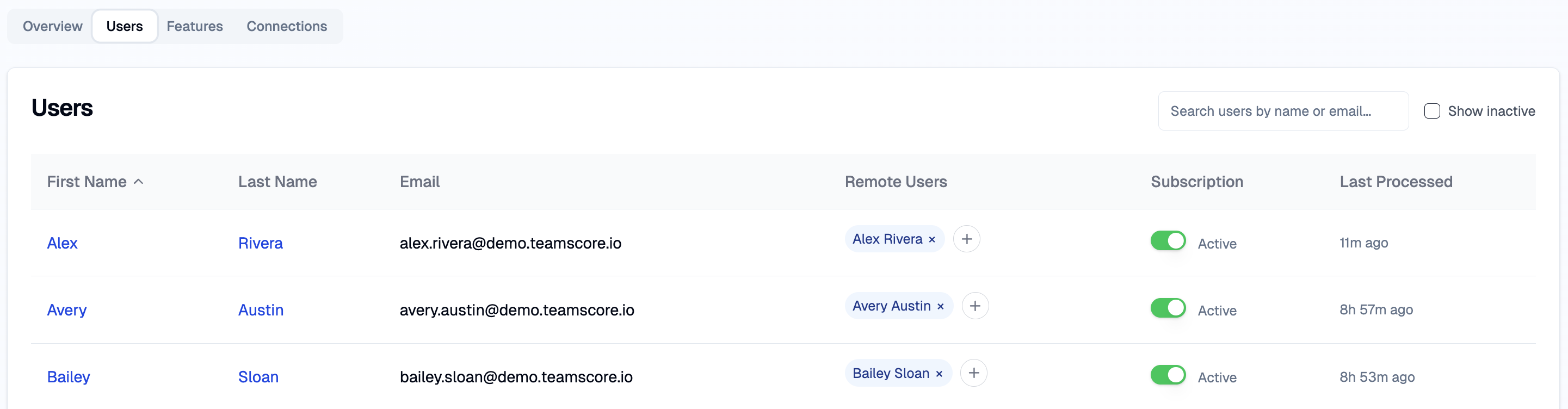
Each row represents a TeamScore user and how their identity from the external service is linked. The table includes:
- Name & Email — Pulled from the user’s TeamScore profile. These values are read-only and help you identify the correct person when multiple domains are in play.
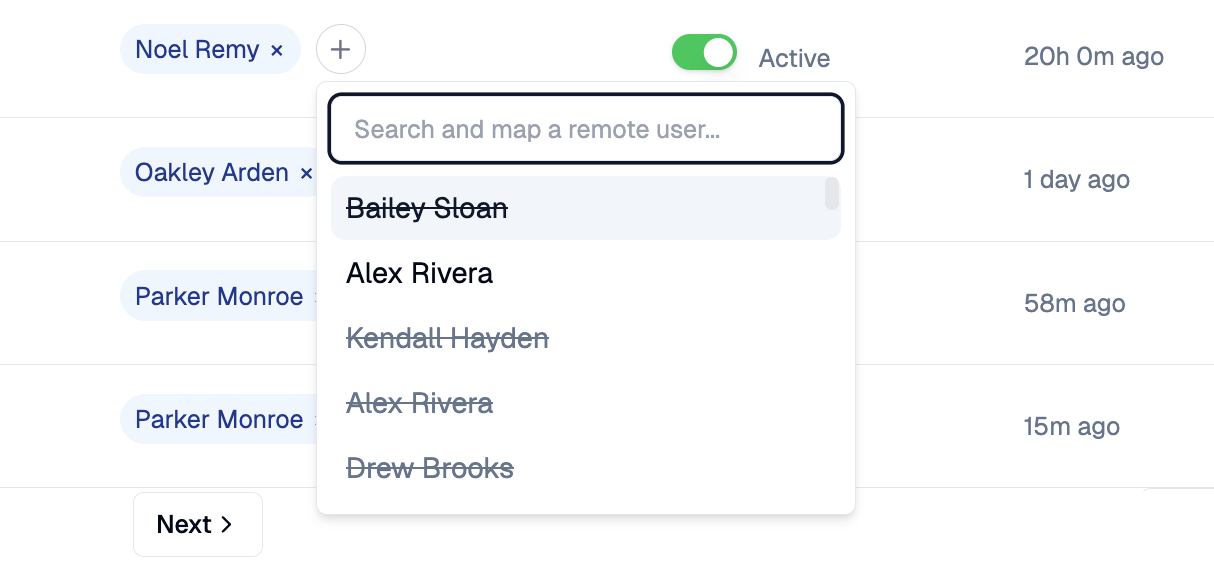
- Remote Users — The accounts from the connected service that map to this TeamScore user. A TeamScore user can have one or more remote users (for example, a personal domain account + a shared billing account). A remote user can belong to only one TeamScore user at a time. If it’s already assigned, it appears crossed out and cannot be selected. Click the + button to add a remote user from the imported list.
- Subscription — This toggle determines whether TeamScore processes data from this user for the selected service. If the toggle is inactive, TeamScore ignores incoming data, though historical data remains intact.
- Last Processed — Shows when TeamScore last received data from this user for this service or one of its features. This is your best indicator for diagnosing missing activity — if a user’s TeamScore looks low but the Last Processed timestamp is old, the issue may be with the connection or the external service, not their actual work.
How Mapping Works
TeamScore relies on email-based identity to link external activity to the correct user. Most integrations provide a clean match, but there are exceptions. For example, contractors who use multiple email addresses, organizations with formal and informal email formats, or services like GitHub, where email visibility is restricted.
The Users Tab gives you a unified place to confirm that each person’s external accounts are correctly attributed. If a user is missing activity, this screen is the first place to check.
Subscription Management
Once a TeamScore user is linked to remote users, you can activate their subscription, instructing TeamScore to process and save incoming data related to those remote users under that TeamScore user. You can turn subscriptions off if you want to stop data processing for any reason, but typically you will keep them running to constantly collect work data. Typical use cases:
- Onboarding employee: Toggle on to begin collecting activity.
- Employee on extended leave: Keep mapping but toggle subscription off.
- Shared mailbox or service account: Only subscribe the person who owns the mailbox.
Turning a subscription off does not break or remove the mapping; it simply pauses processing.
Diagnosing Issues with Last Processed
The Last Processed column is a good diagnostic tool: for example, the “Never Processed” or stale timestamp indicate either the user hasn’t used the feature yet or mapping/subscription is missing. In that case, connection may need refresh.
Summary
The Users Tab lets you verify and control how TeamScore links real people to the accounts they use in external services. It centralizes identity mapping, subscription status, and data-flow diagnostics — all three components required for reliable TeamScores and accurate reporting.
When the Users Tab is configured correctly, TeamScore knows exactly whose work it is reading and which activities should count.
Features Tab
The Feature Tab shows how activity from the individual components of a service flows into TeamScore. Many integrations aren’t single data sources but collections of smaller services such as email, calendars, drives, chats, tickets, calls. The Features Tab gives you fine-grained control over these pieces without requiring additional authentication or account linking.
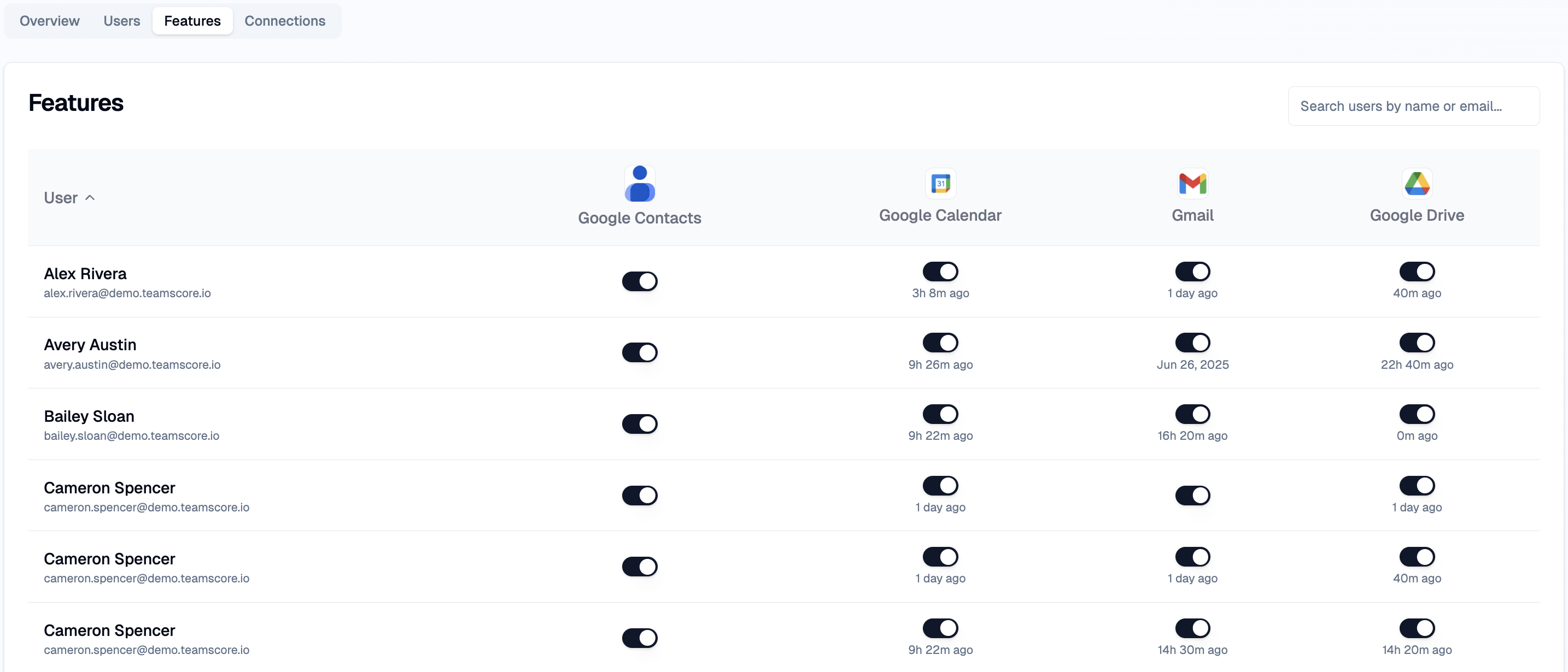
When you open this tab, you see a table of your mapped users on the left and the available features across the top. Each intersection tells you two things: whether the feature is enabled for that user, and when TeamScore processed activity from it.
Understanding Features in TeamScore
A feature is TeamScore’s term for a “sub-service” inside a larger integration. Gmail, Calendar, Drive, and Meet are all features of Google Workspace; Teams Call and Teams Chat are features of Microsoft365.
TeamScore treats them as part of the same integration because a user authenticates once and gains access to everything under that umbrella. There are no separate logins, no separate mappings, and no additional setup.
Features simply reflect how the external service organizes its activity streams, and TeamScore lets you turn those streams on or off at the user level.
Controlling What TeamScore Sees
Turning a feature off means TeamScore will ignore everything coming from that feature for that user. TeamScore will still receive the data from the external service, but it won’t store it, score it, or display it anywhere. The decision is precise and reversible; turning the feature back on resumes normal processing.
This is useful when activity should remain private — legal teams, HR sensitive information, or when the feature simply isn’t relevant to how a person works. Meanwhile, leaving features enabled poses no downside: TeamScore only processes data that exists. If someone doesn’t use Calendar or Drive, those features remain silent.
Summary
The Features Tab lets you shape TeamScore’s visibility with precision. It shows which parts of an integration are active, who is using what, and when it last received data from each stream. It’s a straightforward and high-control view that helps you balance privacy, relevance, and accuracy across your connected services.
Connections Tab
The Connections Tab shows the live authorizations between TeamScore and the external service. Connection is the specific OAuth permission granted by a user that lets TeamScore read activity from that service.
Most services only need one connection, but TeamScore fully supports multiple. This matters when an integration owner leaves, when permissions change, or when you want redundancy to avoid interruptions.

When you open the tab, you’ll see a table listing all current connections, who owns them, when they were created, when they were last refreshed, and whether they’re functioning properly.
Understanding Connections
Each connection represents a single authorization event — usually one administrator clicking “Allow” during setup. TeamScore uses these authorizations to pull activity, sync users, and maintain access to the service over time.
Connections belong to users: if a connection owner’s account becomes inactive or their permissions change in the external service, the integration can break. This is why organizations often establish a secondary or backup connection, especially for mission-critical services like Google Workspace or Microsoft365.
TeamScore handles multiple connections intelligently and prevents duplicate users or events by merging data using underlying unique identifiers.
On the right of the Connections table, you’ll see Action — Refresh Connection. This button serves two purposes:
- Refresh the authorization — Re-validates token access if something changed on the service side.
- Re-import users — Pulls a fresh list of remote users from the connected service and updates TeamScore’s Remote User pool.
In other words, Refresh Connection is both a permission refresh and a user re-import.
Summary
The Connections Tab shows who owns the authorization, when it was last refreshed, whether it’s active, and how many users TeamScore discovered. The Refresh Connection button is your central control for keeping the integration healthy, as it renews the connection and re-imports users in one step.
Additional Resources
If you need more detailed guidance on how each integration works, visit our dedicated
Integrations Knowledge Base
It covers setup steps, required permissions, recommended configurations, and troubleshooting for Google Workspace, Microsoft 365, HubSpot, Zoom, Atlassian, and other supported platforms.