

Table of contents
Basecamp connects to TeamScore through a simple OAuth flow. Once the connection is complete, TeamScore receives metadata about messages, to-dos, comments, files, and scheduled events for all mapped users. Because Basecamp processes events through a webhook plus a scheduled workflow, activities may appear after a short delay.
Only Admin, Owner, and Executive access level users can initiate this setup.
For a platform-level explanation of Basecamp activity in TeamScore, see Basecamp Overview.
Step-by-Step Setup Instructions
Step 1 – Start the Connection in TeamScore
- Go to Services in the top navigation
- Find Basecamp in the list
- Select Connect Basecamp
This opens Basecamp's OAuth authorization screen.
Step 2 – Authorize TeamScore in Basecamp
Sign in the Basecamp account you want to connect and approve the requested permissions. Basecamp uses a standard OAuth workflow to allow TeamScore to receive metadata for project activity.
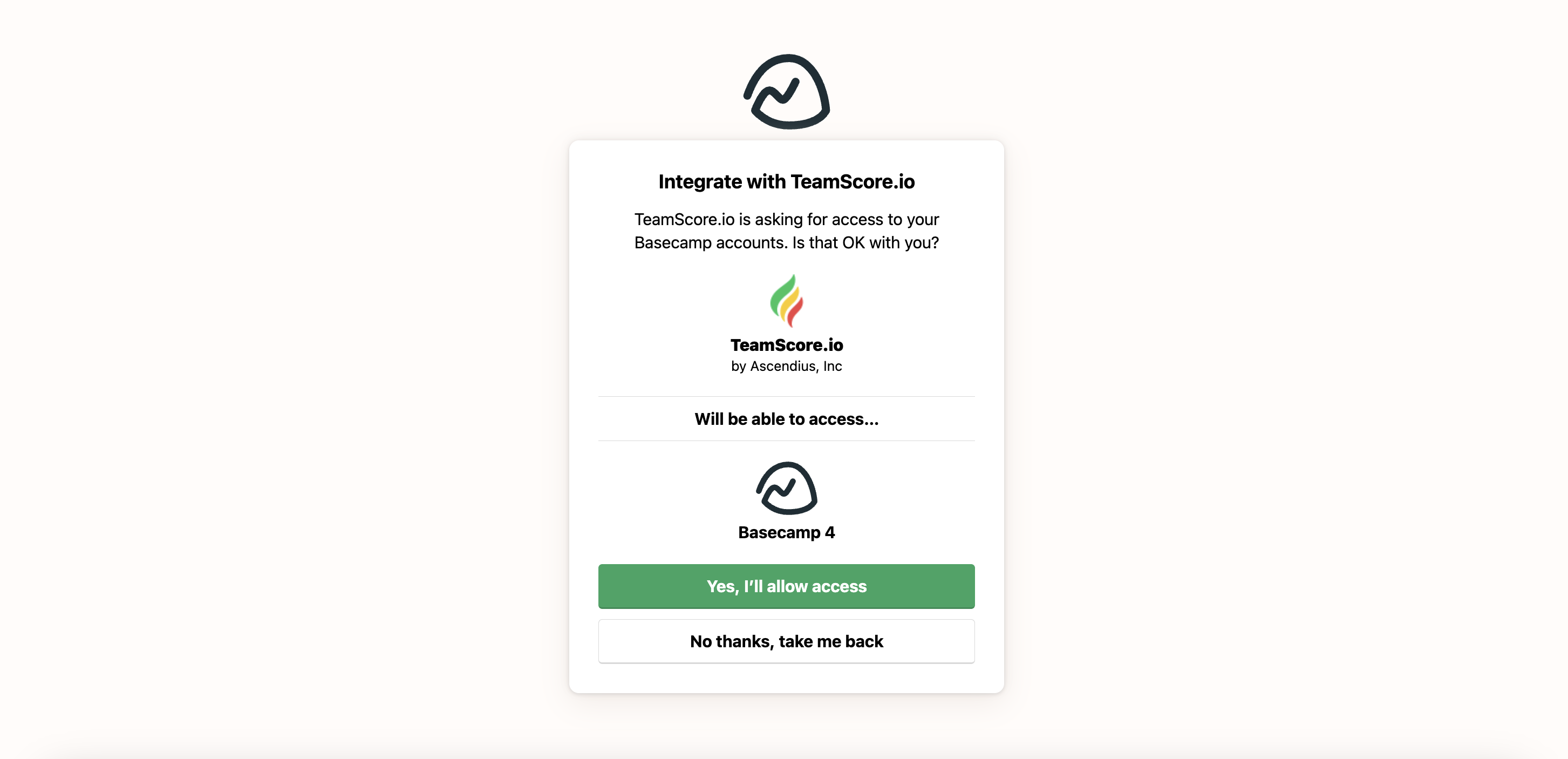
Once authorization is complete, TeamScore registers the webhook and prepares the scheduled ingestion process.
TeamScore begins receiving events only from the moment the connection is established. Basecamp does not provide historical activity.
Step 3 – User Mapping
After the connection is created, TeamScore imports your Basecamp users and automatically attempts to match them to TeamScore users by email. Proper mapping is required for activity to appear on the timeline.
If a user is not automatically matched:
- Open the Users Tab inside the Basecamp integration
- Select the unmapped Basecamp user
- Choose the corresponding TeamScore user profile
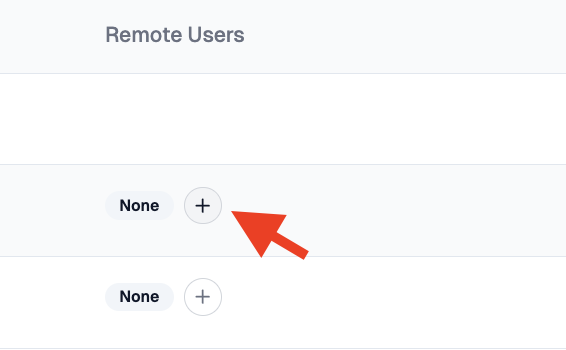
A user can only be mapped once. Only mapped users will generate activity entries in TeamScore
What Happens Next
After setup, Basecamp begins sending metadata to TeamScore for new messages, message updates, comments, to-dos, file uploads, and scheduled events. These events are processed through a two-stage flow: Basecamp webhook delivery and TeamScore’s scheduled processing job.
As a result, activity usually appears shortly after it occurs in Basecamp once both steps complete.
You can review the connection and user mappings anytime from the Basecamp integration page.
Troubleshooting
If Basecamp activity does not appear in TeamScore, confirm the following:
- The correct Basecamp account was authorized.
- The user performing the activity is mapped to a TeamScore user.
- The activity occurred after the integration was connected (there might be an up to 20-minute backlog).
- The scheduled Basecamp processing workflow has run.
- The Basecamp OAuth token has not expired. Reconnect in the Services List if needed.
Features
For file activity, see Basecamp Files.
For task activity, see Basecamp To-Dos.
For message visibility, see Basecamp Messages.
For threaded collaboration, see Basecamp Comments.
For project events, see Basecamp Scheduled Events.