

Table of contents
TeamScore can track outgoing email activity from your Google Workspace users by forwarding Gmail header metadata through a secure compliance rule. This provides visibility into email volume and workload patterns without accessing message content.
What TeamScore Captures from Emails
TeamScore receives header-level metadata for outgoing emails. This is the information Gmail includes before the message body, and it's enough to show activity patterns without exposing content or attachments.
TeamScore captures:
- Sender's name and email address
- Recipient's name and email address
- To, CC, BCC
- Subject line
- Timestamp of when the email was sent
Step-by-Step Setup Instructions
Step 1 – Log into admin.google.com
Open the Google Workspace Admin Console at admin.google.com.
You'll need admin permissions to complete this configuration.
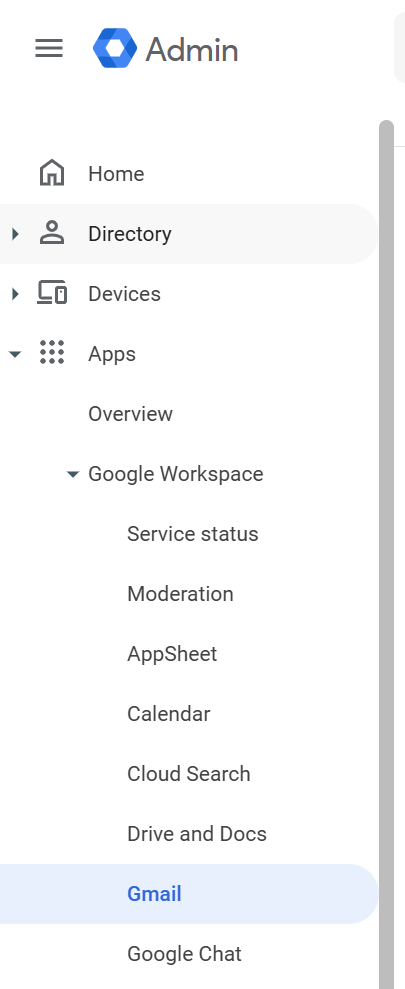
Step 2 – Navigate to Apps → Google Workspace → Gmail and then Content Compliance
You can go directly to Content Compliance settings here, then proceed to Step 3 below.
If the direct link doesn't load for your domain, follow the path in screenshots manually.
In the left-hand corner, open the main menu (☰) and go to Apps, then Google Workspace, then Gmail:
Once you're on the Gmail settings page, scroll down until you find the Compliance section (highlighted in yellow in the screenshot):
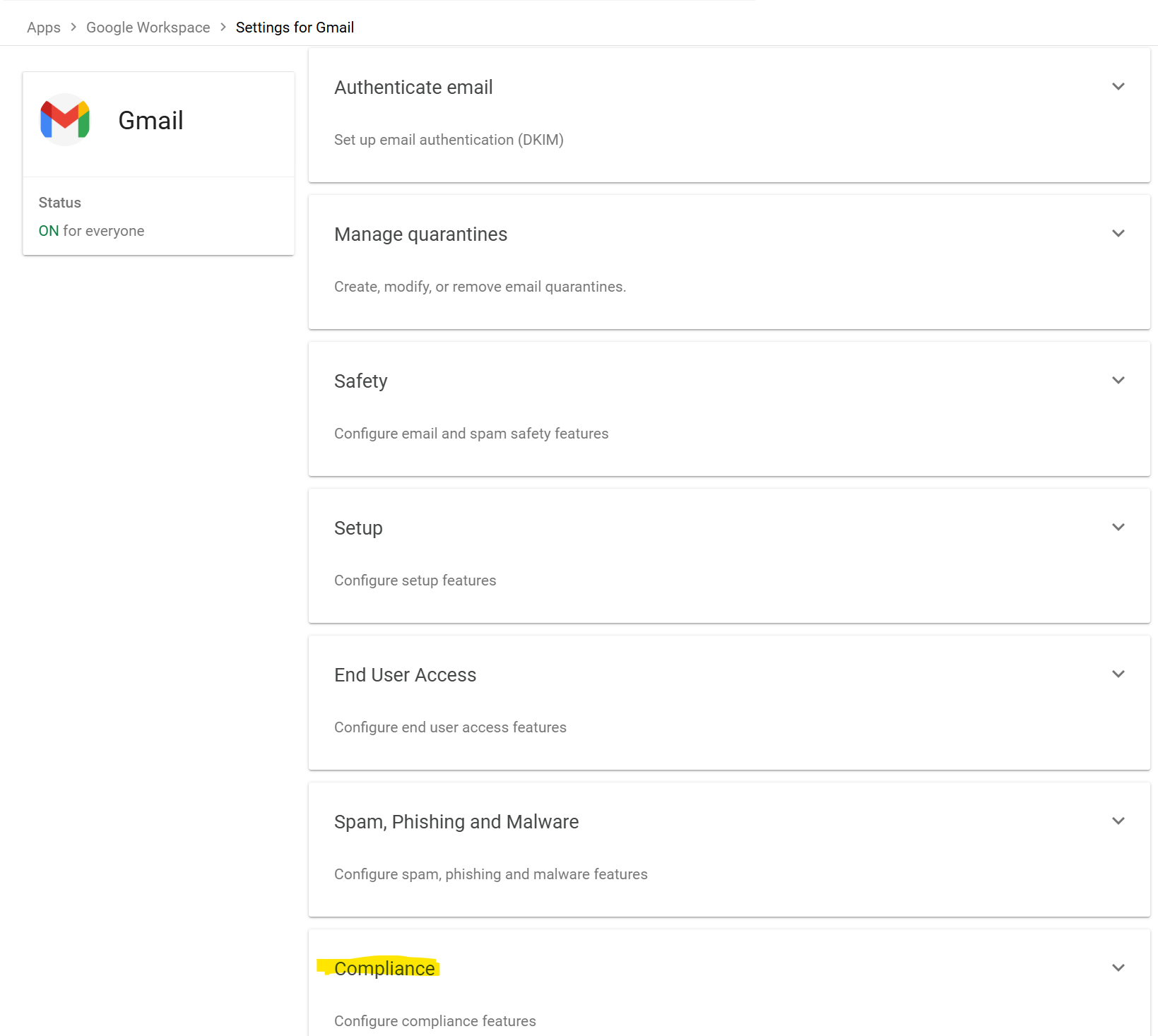
Click Compliance to open the detailed settings panel.
Step 3 – Create a Content Compliance Rule
In the Compliance section, scroll down to Content Compliance and click Configure (highlighted in yellow in the screenshot):
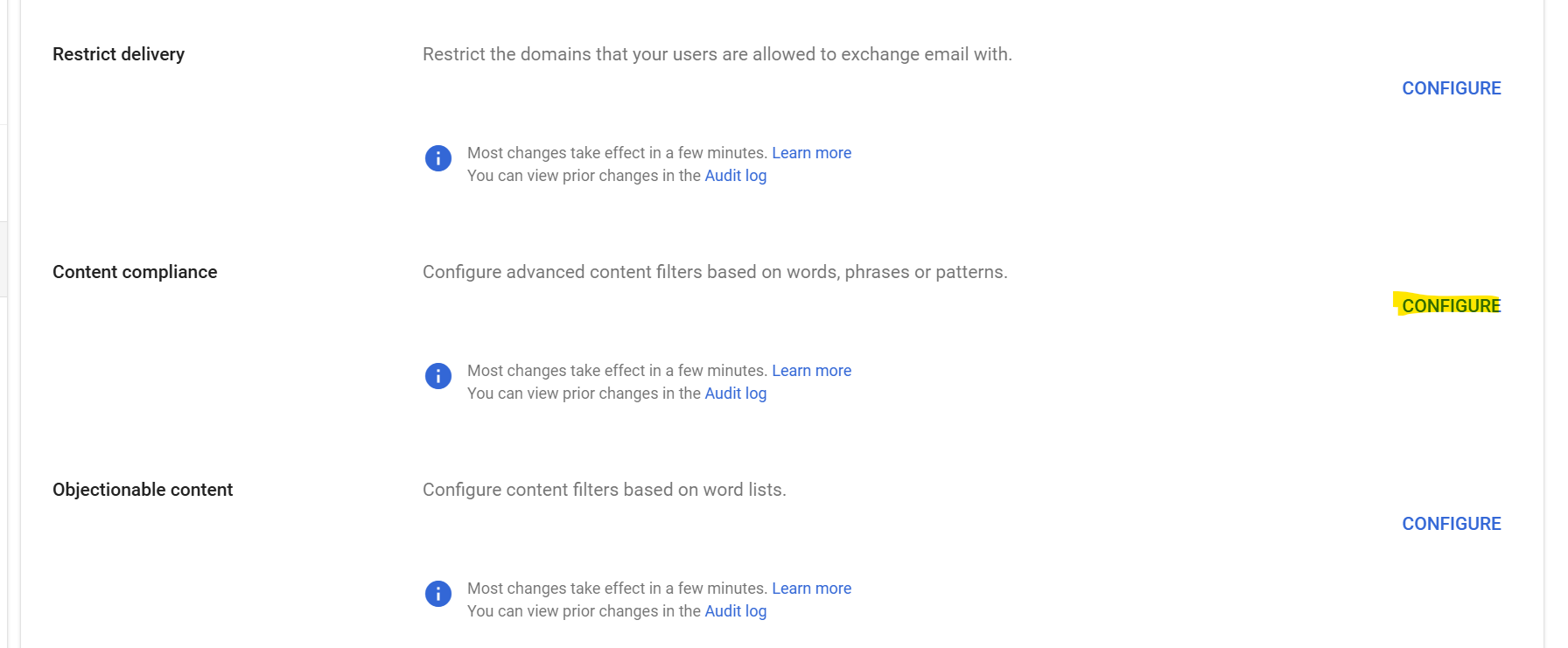
This opens a modal where you'll define the forwarding rule that lets TeamScore recognize outgoing email activity.
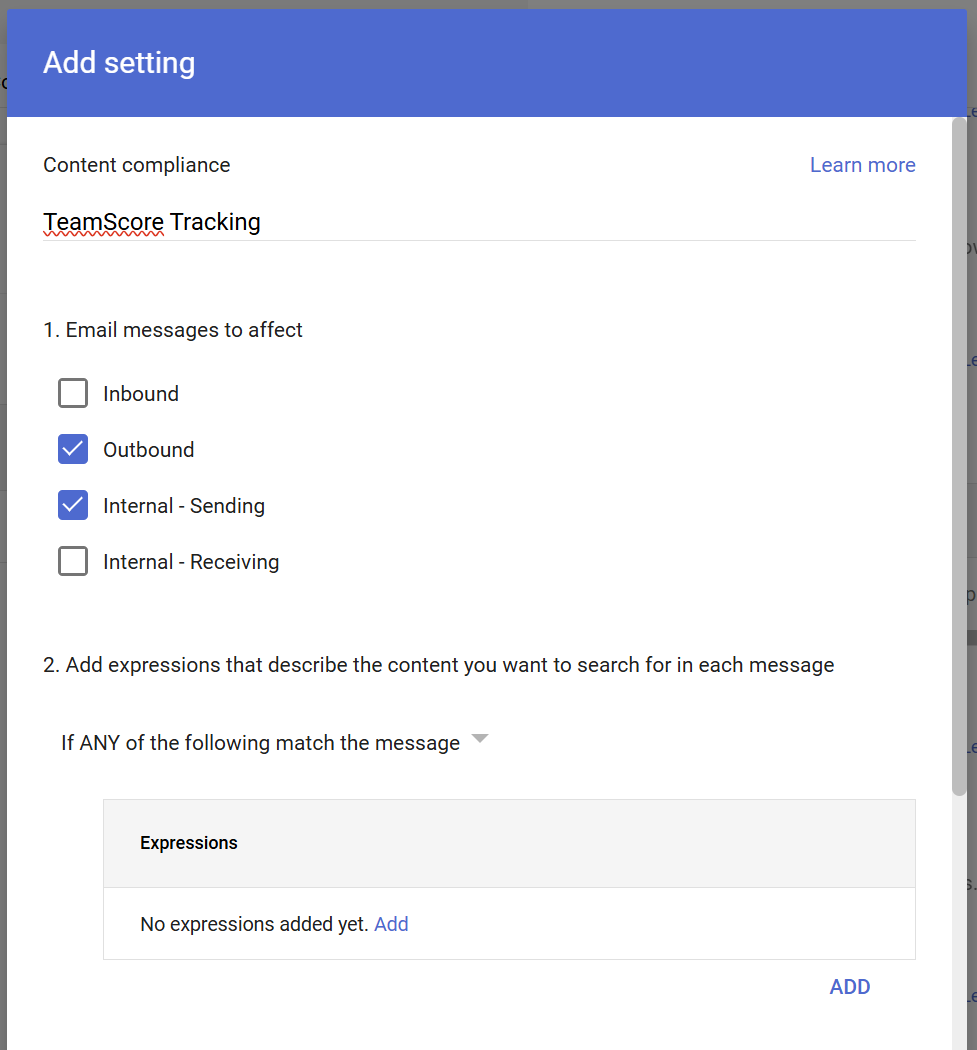
1. Name the rule
You can give the rule any name you like — we have called it TeamScore Tracking in the screenshot below.
2. Select the message types
Choose Outbound and Internal - Sending. This ensures that only emails sent by your users are included. Incoming mail is never shared with TeamScore.
3. Add a match condition
Under Expressions, click Add. Enter your company domain in the Content field (shown in yellow as acme.com below):
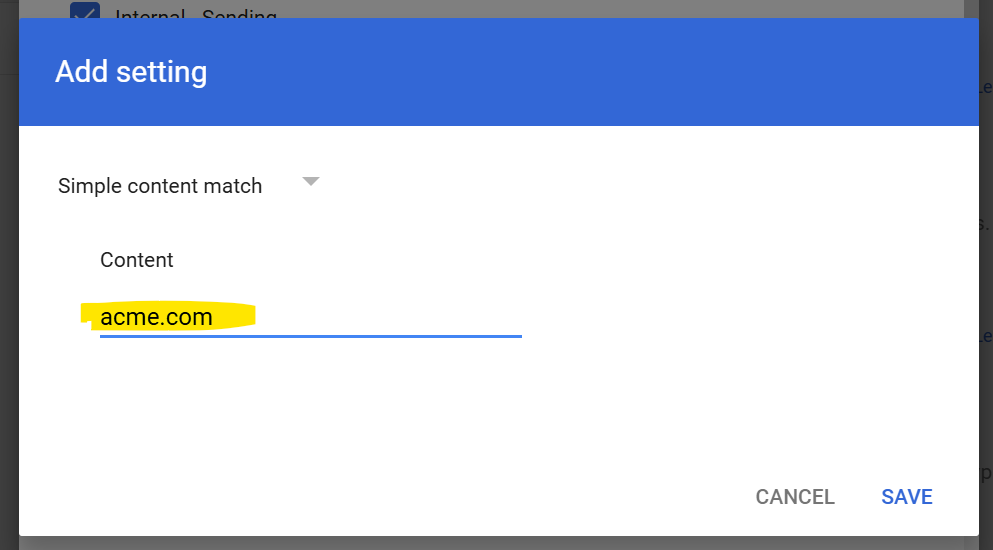
Leaving this field empty will prevent the rule from matching anything, so including your domain is important.
Click Save to confirm the content match.
4. Add TeamScore as a secure BCC recipient
Scroll down to Also deliver to and select Add more recipients:
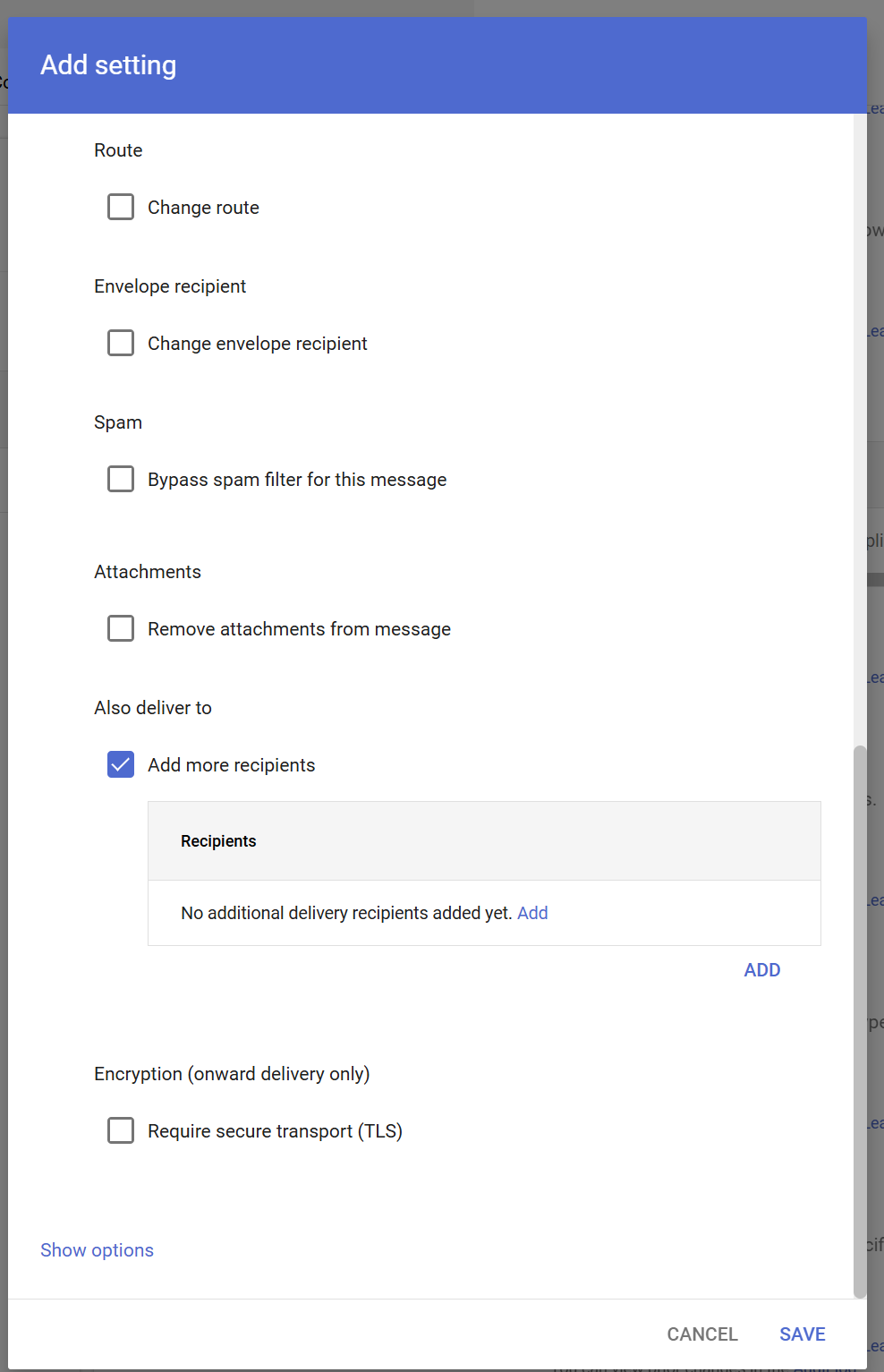
Click Add and enter the recipient as track@mail.teamscore.io:
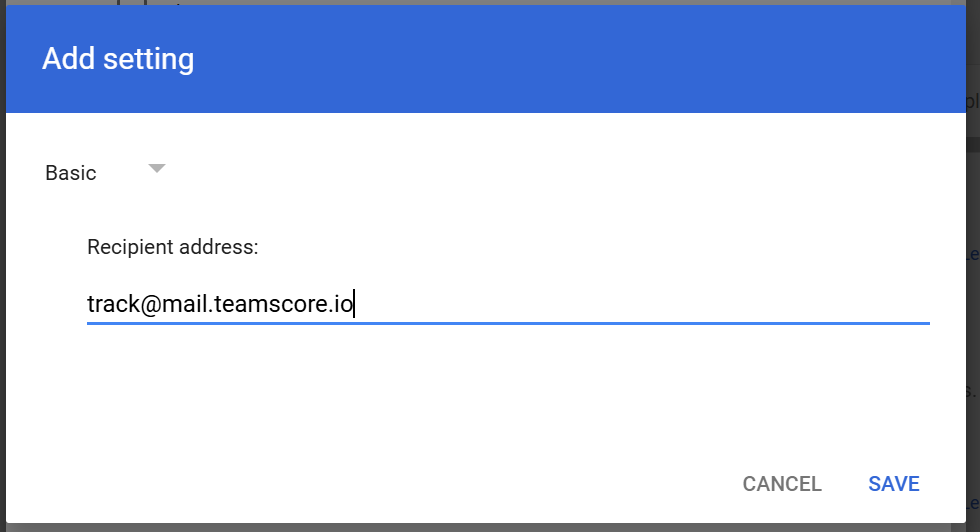
For EU-hosted customers, the recipient will be track@eu-mail.teamscore.io.
Click Save to confirm the address, and Save again to finalize the overall Rule.
Additional Tips
- This configuration automatically forwards header metadata for outgoing messages sent by your team.
- You can refine the rule by adding exclusions for specific users, groups, or header patterns if needed.
- The forwarding rule can be disabled at any time.
This approach leverages Google Workspace's compliance features to securely and efficiently integrate Gmail sent email data into TeamScore, helping your team stay organized and informed.