

Table of contents
Assign Manager Relationships
Assigning manager relationships defines how your organization is structured inside TeamScore. These relationships determine reporting lines, access levels, and which users appear in each manager's dashboards. Setting this up ensures the reporting structure in TeamScore matches your organization accurately.
Before You Begin
Make sure all users have been imported and assigned roles in Add and Manage Users.
This step connects those users into a clear reporting structure.
Manager Setup Steps
Step 1 – Open the Manager Setup Screen
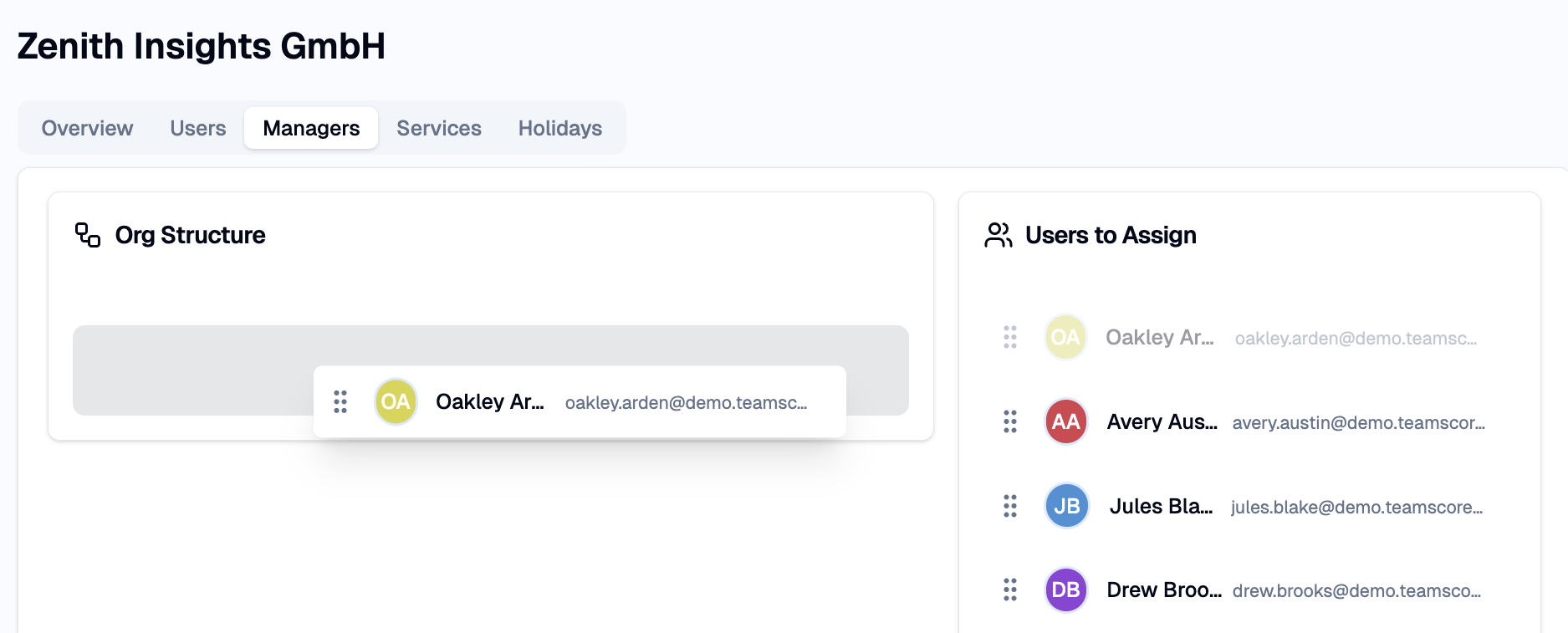
TeamScore displays all users added during provisioning. The left side lists unplaced users; the right side shows the hierarchy you are building.
Step 2 – Assign Manager Relationships
Drag a user from the left panel onto their manager in the right panel.
TeamScore saves each assignment automatically and updates visibility rules immediately.
Step 3 – Adjust or Correct Relationships
If someone was added under the wrong manager, drag them to the correct one. You can reposition as many people as needed until the structure accurately reflects your organization.
Step 4 – Review and Complete Setup
Once reporting lines look correct, select Next to finish provisioning.
Manager relationships can be updated at any time under Account Settings. Any changes apply instantly across dashboards and permissions.
Next Steps
For deeper visibility into how these relationships shape insights, continue with:
TeamScore Dashboard — leadership-level view of team activity
Activity Dashboard (Daily View) — daily activity and AI summaries
Reports & Notifications — daily and weekly score summaries