

Table of contents
Connecting Atlassian Jira to TeamScore is a quick process that enables TeamScore to receive issue activity through Jira's webhook framework. Once connected, TeamScore reflects issue creation, updates, and comments for all mapped Jira users.
TeamScore supports Jira Cloud. Confluence is not supported because Atlassian removed webhook capabilities for that product. Only Jira sends activity signals to TeamScore.
Step-by-Step Setup Instructions
Step 1 – Start the Connection in TeamScore
- Go to Services in the top navigation.
- Find Atlassian in the list.
- Select Connect Atlassian.
You must be an Admin, Executive, or Owner in TeamScore to initiate this integration. On the Jira side, the user authorizing the connection must have Jira administrator permissions.
Step 2 – Authorize TeamScore in Jira
TeamScore redirects you to Jira's OAuth authorization flow.
Approve the requested permissions, which allow TeamScore to receive webhook notifications for supported Jira events. Once approved, TeamScore completes the system configuration and activates webhook delivery.
After authorization is finished, you will return to TeamScore and see the newly created Jira connection.
Step 3 – Map Jira Users to TeamScore Users
TeamScore automatically imports Jira users and attempts to match them to TeamScore users by email. To review or complete mappings:
- Open the Users Tab in the Atlassian integration
- Select any unmapped Jira user
- Choose the correct TeamScore user to complete the mapping
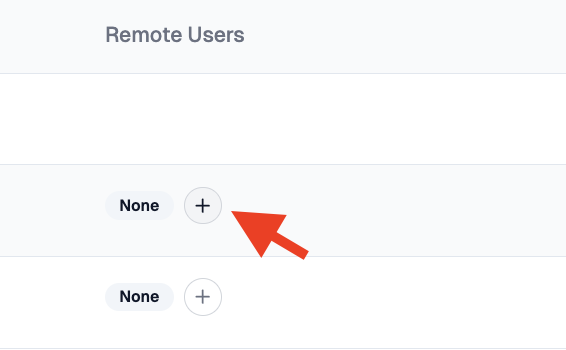
Only mapped Jira users will have their Jira activity displayed in TeamScore. Unmapped users will not appear.
What Happens Next
After the connection is established and users are mapped, TeamScore begins receiving Jira webhook events for issue creation, updates, and comments. Activity starts to appear on the timeline for mapped users.
No historical data is imported. Only events that occur after connection will appear.
You can update user mappings or disconnect the integration at any time from the integration page.
For issue-level activity, see Jira Issues.
For comment-level activity, see Jira Comments.
Troubleshooting
If Jira activity does not appear:
- Confirm the Jira user is mapped to a TeamScore user.
- Verify the Jira authorizing account has the correct admin permissions.
- Ensure the activity occurred after the connection was established.
- Reconnect the integration if Jira permissions or tokens have changed.