

Table of contents
Slack can be connected from the Services section in TeamScore. Once connected, TeamScore begins checking Slack's presence indicator to show when mapped users are active on the Slack desktop app.
Only Executives and Admins can initiate Slack connections.
Step-by-Step Setup Instructions
Step 1 – Start the connection in TeamScore
- Go to Services in the top navigation
- Find Slack in the list
- Select Connect Slack
- Sign into your Slack workspace and approve the requested permissions
Slack only grants access to presence information. No messages, channels, or content are shared with TeamScore.
Step 2 – Automatic User Mapping
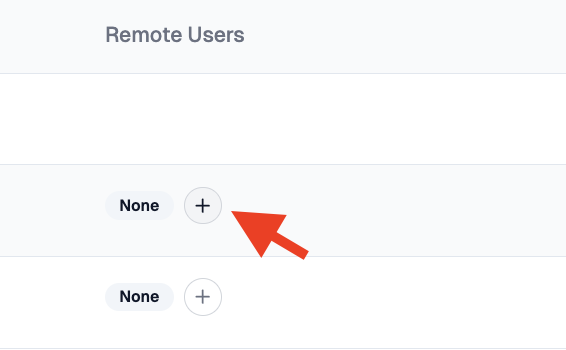
After the connection is established, TeamScore imports your Slack users and maps them automatically by email. If a user does not map, open the Users Tab and match them manually by selecting the correct Slack account.
Accurate mapping ensures Slack presence appears for the right team member.
For details on how Slack activity appears in TeamScore, see Slack – Overview.
What Happens Next
TeamScore begins polling Slack to determine whether mapped users are active on the Slack desktop application. Slack only reports desktop presence, not mobile sessions.
Slack presence appears in TeamScore as contextual visibility, not task activity. It does not reflect execution, duration, or output, and does not affect activity calculations.
You can review the connection and user mappings at any time from the Slack integration page.